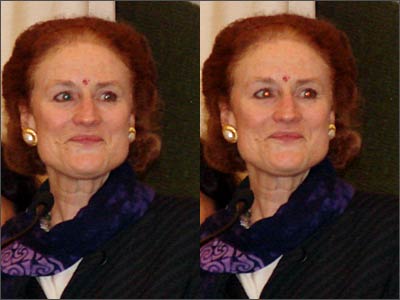
Red-eye reduction (check the pictures to see the difference) can be very tricky. If not done right it can make eyes look very unnatural. Fret not, there's a great method to remove red eye from images. It may be a bit complex for a beginner, but the results are worth it.
~ Open the image in Photoshop
~ At the bottom of the layer window, click on the circular icon that stands for 'Create new fill or adjustment layer' and select the Channel Mixer option.
~ In the window, set the Red channel to 0 per cent, Green to 50 per cent, and Blue to 50 per cent. Don't panic when you get an off-colour image
~ Now, select black as your foreground colour, making sure the Channel Mixer layer is selected, and press [Alt]+[Backspace] to fill it up with black
~ Select the foreground colour as white, and use the brush tool to paint over the red portion of the eyes. It's preferable to select a brush size that matches the size of the red eye
~ Notice the red eye disappear as you paint over it.
Also Read: 5 cell phone features that simplify life
 Advertisement